
UWinsite Student Receives an Update and a Refreshed Look
Modernized Homepage
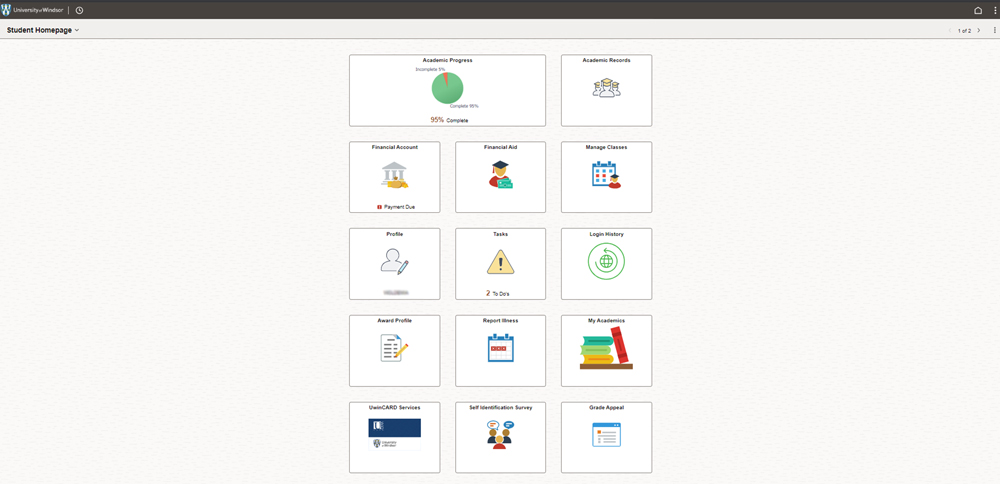
Quick Access Bar & Updated Icons
- When selecting the clock, it will display the recently viewed pages.
- The home and ellipsis have been refreshed and other icons have been removed.
- The identity type title displays the user profile type you are currently viewing. Example: Displayed in the image is the Student Homepage, by selecting the dropdown arrow you can view the Applicant Homepage. This is helpful when applying to another program or changing majors as you can check the status in the Applicant Homepage profile. You can also switch between profiles by using the arrow on the right.
Enrollment Appointments
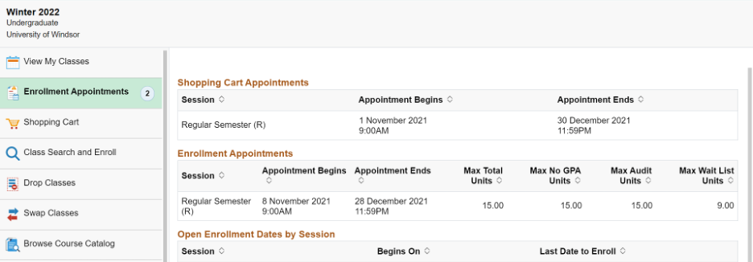
Students can view their shopping cart and enrolment appointment times in UWinsite Student under Manage Classes. Find it under Enrollment Appointments in My Academics.
Registering for Classes
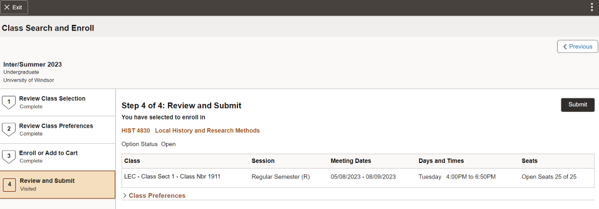
Subtle aesthetic updates are found and the Class Search and Enroll title is on the left.
Change My Program

The button name changed from Application Start to Create New Application. Find the renamed button by selecting My Academics homepage tile, select Application Start, select Change of Program, then select Create New Application.
Change an option
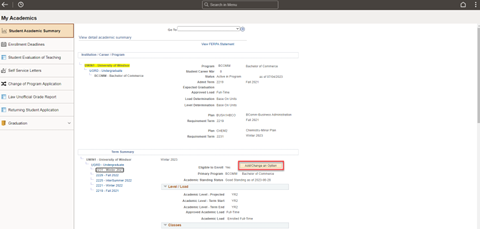
Subtle aesthetic changes are found in the Add/Change an Option screen. To access this area, go to My Academics from the homepage tile, in Student Academic Summary, to Add/Change an Option.
Grade Appeal
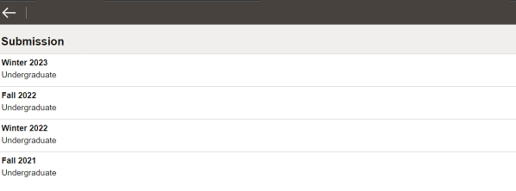
Within the Grade Appeal tile, the Submission title has moved to the left.
Self-Serve Letters
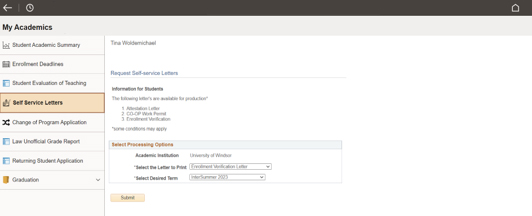
Subtle aesthetic changes are found on this screen, the clock is available in the navigation bar and the My Academics section title is on the left.
Generate an Unofficial Transcript
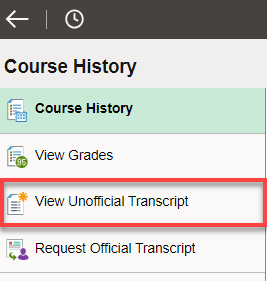
While the look has changed, the process to access an official transcript has not changed. Find it under Academic Records, then View Unofficial Transcript.
Delegate Access Summary
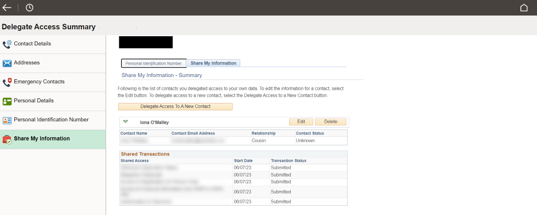
Subtle aesthetic changes have been made to this screen, the clock is available in the navigation bar and the Delegate Access Summary title appears on the left.
View Class and Exam Schedule
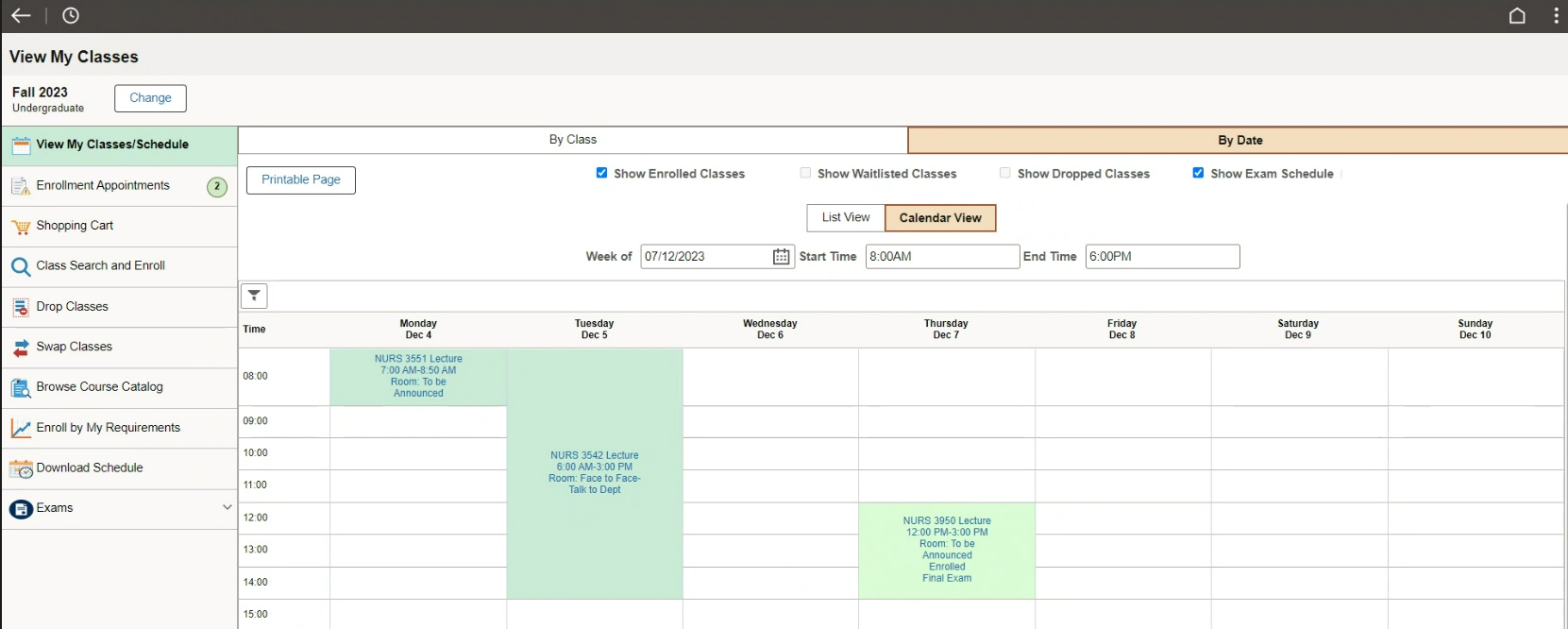
You can view your class schedule by selecting Show Enrolled Classes and when exam information is available, you can select Show Exam Schedule to see the Calendar View. The example shown of an exam schedule.