
Panorama closing as of October 2026
The University's contract with Panorama is ending as of October 2026. You can continue to use the tool up until that time.
General Overview
Panorama is a tool that assists instructors and students with creating a more accessible learning environment within Brightspace. Panorama will review files for instructors, provide reports, and assist with fixing common accessibility issues. Students will have access to alternate formats that might support their needs better. Panorama even allows users to customize how their Brightspace page will look for them.
Instructors looking to get started can attend one of the workshops on Panorama in the Teaching with Tech workshop registration page or contact ctl@uwindsor.ca. They can also check out the Panorama instructor getting started page or instructor getting started video.
Students looking to learn more about the accessible formats can attend one of the student focused workshops on Panorama in the Teaching with Tech workshop registration page. They can also check out the student getting started page or getting started video.
 Website Accessibility Widget
When you log into your Brightspace site you should notice the Panorama website accessibility widget in the bottom left corner of your screen. When clicked, this tool will allow you to customize the appearance of the content on your Brightspace site for yourself. It allows you to change font size, colour, contrast, outline or highlight certain text, and much more. It even has suggested accessibility profiles that users can try. To learn more sign up for one of our workshops, watch the accessibility widget video, or check out the accessibility widget information page.
Document types and accessible formats
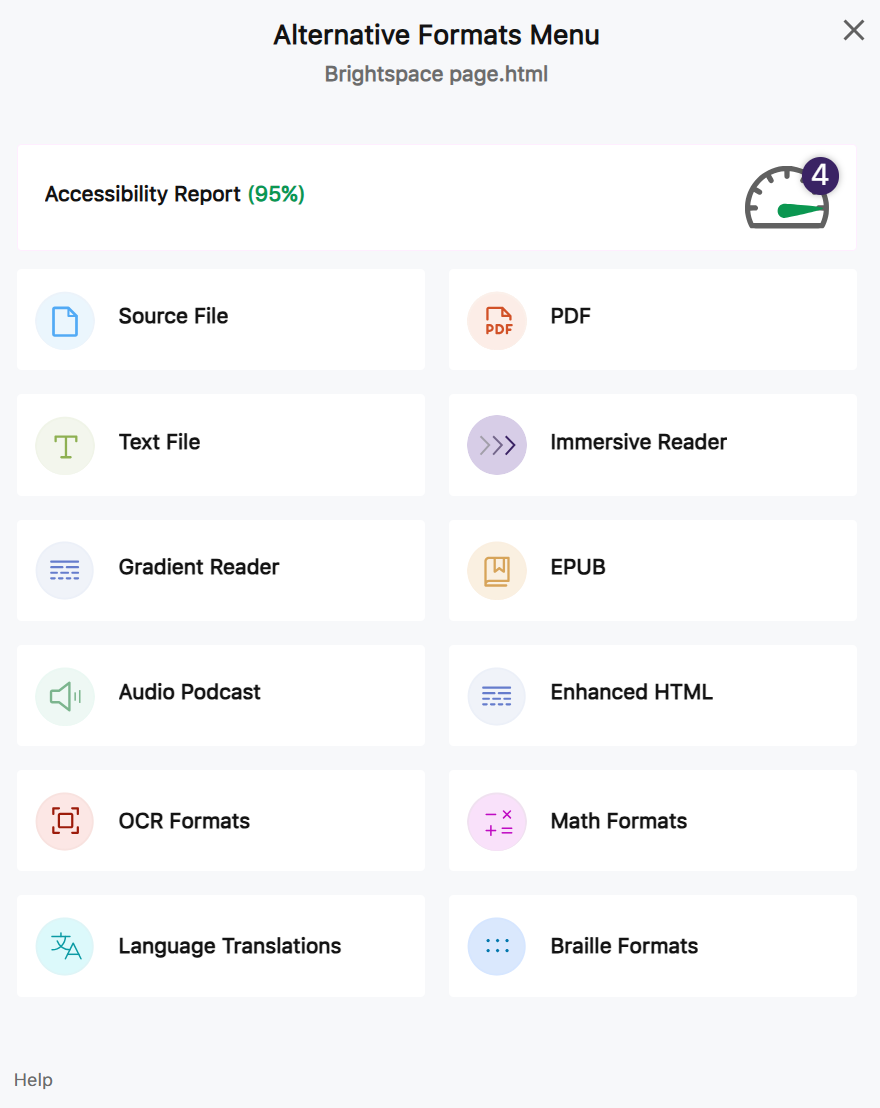 Panorama will review your Microsoft Word and PowerPoint files, as well as your PDFs and Brightspace web pages. Instructors can view an accessibility report and use that to fix common accessibility issues.
Instructors and students can access Panorama tools in their Brightspace courses and select to view a document in an Alternative Format or view an Accessibility Report.
For example, users can download the file as a BRF file type for braille displays, EPUB for e-readers, TXT for simple text applications, PDF, or MP3 for audio players.
Users can also view the document in High Contrast, on a Webpage, or as a Text-to-Speech file directly in a supported web browser. Panorama also supports accessible math formats and allows for language translation. For more information, sign up for one of our workshops or check out the accessible file formats information page.
Help and support
If you have any questions about Panorama, please email ctl@uwindsor.ca. There is also a FAQ page for Panorama. If you are experiencing any technical issues using Panorama, email support@yuja.com and file a ticket, where the YuJa/Panorama support will respond. Workshops on accessibility features in Brightspace and Panorama, are available to sign up for at the CTL Teaching with Tech workshop registration page.