
WEBPAGE NOTE: Occasionally, the accordion menus used below do not open. If this occurs when visiting this page, please let us know.
Understanding passkeys and what options are available at UWindsor
Microsoft is retiring text message authentication (SMS) and positioning passkeys as the new standard for secure multi-factor authentication (MFA). Passkeys make accessing your university account faster, easier, and more secure while helping protect you and our campus community from cyber threats.
Passkeys provide a more secure, phishing-resistant way to verify your identity when signing into an account. Instead of entering a code or approving a notification, a passkey uses cryptographic security and confirms your identity using a trusted device, such as your phone, computer, or security key, along with a fingerprint, facial recognition, or PIN.
Because the passkey is tied to the legitimate website and cannot be intercepted or reused by attackers, it helps protect your account from phishing attacks, password theft, and fraudulent sign-in requests while providing a simpler and faster sign-in experience.
Learn more about the available passkey methods that are currently supported for your UWin Account below. The University of Windsor recommends having at least two MFA authentication methods in place in addition to a password.
What are passkeys?
What passkeys are available at UWindsor?
Device-bound passkeys are securely stored on a specific device or hardware security key and can only be used from the device where they were created. Unlike synced passkeys, they cannot be synchronized across multiple devices, providing enhanced device-specific security. If you want to use a device-bound passkey on more than one device, a separate passkey must be created and registered on each device. When signing in, users authenticate with a fingerprint, facial recognition, or a PIN instead of a password, providing a secure and phishing-resistant sign-in experience.
Types of Device-Bound Passkeys include:
• Passkeys in Microsoft Authenticator or Other Authenticator Apps: These passkeys are device-bound, meaning they are securely stored on a mobile device and cannot be transferred to another device. They can be created and managed in Microsoft Authenticator or other authenticator apps, such as Google Authenticator or Authy. When signing in on a different device, such as a classroom, lab, or shared computer, users authenticate using their mobile phone, where the passkey is stored, rather than entering a password. This provides a more secure and convenient sign-in experience.
• Windows Hello for Business: Windows Hello for Business uses a device-bound passkey that is securely stored on a university-owned Windows computer. This passkey is automatically available to University of Windsor employees who are assigned a primary user (non-shared) University-owned or grant-funded Windows PC. Users can sign in using biometric authentication (such as facial recognition or a fingerprint) or a PIN instead of a password. Windows Hello for Business is only available on Windows devices and does not apply to macOS users. Windows Hello for Business is not supported on shared or multi-user work devices because it relies on a user-specific, device-bound credential tied to a trusted device. The Windows Hello for Business passkey is automatically applied to University of Windsor employees who are assigned a primary University-owned Windows device.
• FIDO2 Security Key: A FIDO2 security key is a device-bound passkey that is securely stored on a physical hardware security key, such as a USB, NFC, or Bluetooth security key. Users can sign in by inserting or tapping the security key and verifying their identity, without needing to enter a password. Because the passkey is stored on the security key itself, it can be used to securely sign in on multiple devices, including shared computers such as classroom, lab, or kiosk workstations. This provides strong phishing-resistant authentication while remaining portable and easy to use. Benefits: • Strong security • Simple user experience • Your passkey never leaves the device or security key
Synced passkeys are securely stored in a cloud-based password manager and synchronized across a user's trusted devices. Unlike device-bound passkeys, synced passkeys can be used from multiple devices within the same ecosystem, making them convenient for users who regularly work across computers, tablets, and smartphones. For example, if you create a passkey on your phone, you may also be able to use it on your tablet or computer because the passkey is securely shared between those devices through your device's cloud account.
Types of Synced Passkeys include:
• Apple iCloud Keychain: An iCloud Keychain passkey is a synced passkey securely stored in a user's iCloud Keychain and synchronized across their trusted Apple devices. This allows users to sign in without a password using a passkey available on their iPhone, iPad, or Mac. Because the passkey is synced through iCloud, it can be accessed on multiple devices while remaining protected by Apple's security and encryption technologies.
• Google Password Manager: A Google Password Manager passkey is a synced passkey that is securely stored in a user's Google Account and synchronized across signed-in devices. This allows users to sign in without a password using passkeys available on Android devices and supported Chrome browsers. Because the passkey is synced through Google Password Manager, users can access it from multiple devices while benefiting from strong security protections built into their Google Account.
• Microsoft Passkey Synchronization: A Microsoft-synced passkey is securely stored in a user's Microsoft account and synchronized across supported devices and Microsoft services. This enables users to sign in without a password using a passkey that is available wherever they are signed in with their Microsoft account. Because the passkey is synchronized through Microsoft's cloud services, users can access it across multiple devices while maintaining a secure and convenient sign-in experience. Benefits: • Available across multiple devices • Easy device replacement and recovery • Convenient for people who regularly switch devices
Which Passkey Should I Set Up?
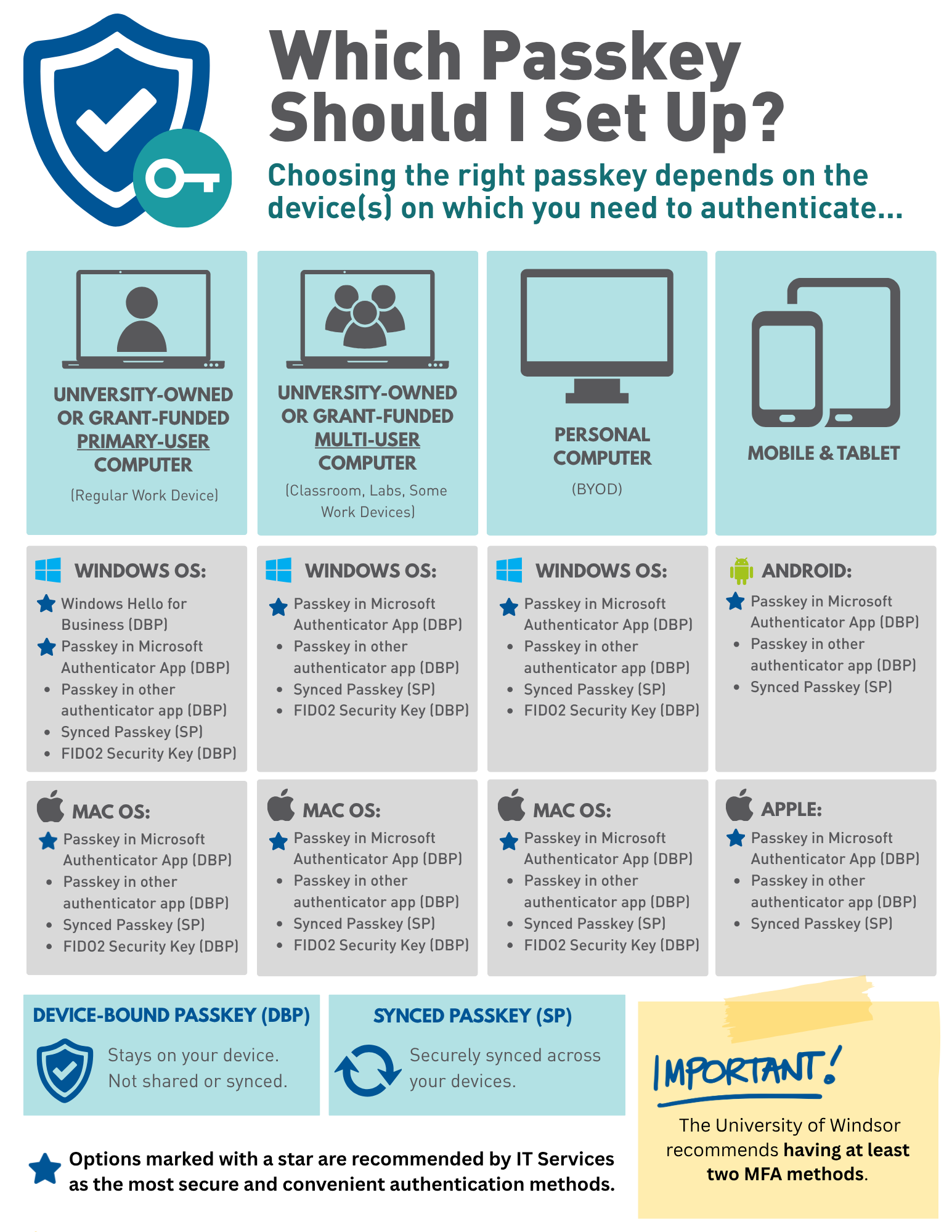
* Windows Hello for Business is not supported on shared or multi-user work devices because it relies on a user-specific, device-bound credential tied to a trusted device. The Windows Hello for Business passkey is automatically applied to University of Windsor employees who are assigned a primary University-owned Windows device.
Ready to set up a passkey? View our All-in-One guide to get started!
Have you already set up passkeys? Enter the draw to win a tech-themed prize pack!
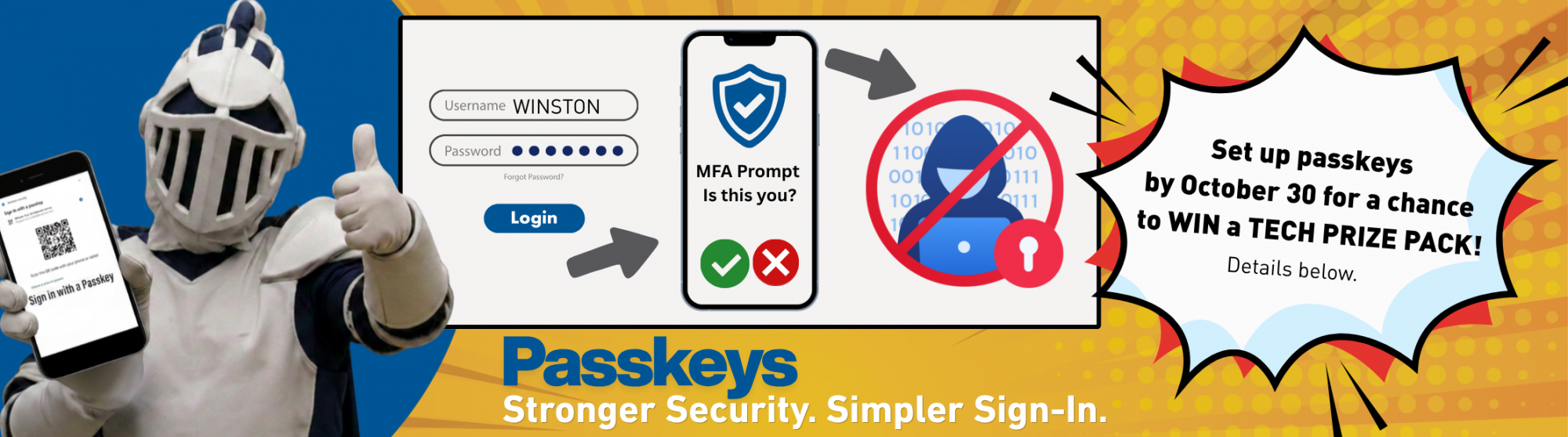
Set up passkeys on your university account by October 30, 2026, then complete the contest form for a chance to win a technology-themed prize pack. Passkeys provide a faster, easier, and more secure sign-in experience while helping protect your account from phishing attacks.
Note: Setting up passkey(s) and submitting the contest form are both required to qualify for the prize draw.

Frequently Asked Questions
A passkey is a modern sign-in method that verifies your identity using a trusted device, such as your smartphone, instead of a code sent by text message or a password.
Passkeys provide a stronger, phishing-resistant alternative because they use cryptographic authentication rather than one-time codes or passwords. When signing in, you simply approve the request using a method you already use every day, such as your fingerprint, face recognition, or device PIN. The passkey works behind the scenes to securely confirm that it's really you.
Unlike text message codes, passkeys cannot be intercepted, guessed, or shared with attackers. Cybercriminals can trick people into providing authentication codes through phishing emails, fake websites, or phone scams. In some cases, attackers can even redirect text messages through SIM-swapping attacks.
Passkeys work differently. They use advanced cryptographic technology that remains securely stored on your trusted device and cannot be reused by someone else. Even if you unknowingly visit a fake website, a passkey will not authenticate to the wrong site.
In simple terms, a passkey proves that you are using your trusted device, making it much harder for attackers to gain access to your account.
This change is part of Microsoft's global effort to move organizations away from authentication methods that are vulnerable to phishing, credential theft, and social engineering attacks.
For many years, text messages and voice calls have been used to confirm a user's identity when signing in. However, cybercriminals have developed new techniques to intercept authentication codes, trick users into sharing them, and bypass these protections. Passkeys are designed to address these risks by providing a more secure, phishing-resistant way to sign in.
Traditional authentication methods such as text messages (SMS) rely on verification codes that can be:
- Stolen through phishing websites or fraudulent emails
- Compromised through SIM-swapping attacks
- Shared unintentionally with attackers
- Targeted by increasingly sophisticated AI-driven scams
There are several benefits you’ll experience when implementing a passkey such as:
- Sign in faster with fewer steps
- No more waiting for text messages
- Better protection against phishing and account compromise
- Greater confidence that your personal information and University data are secure
- Continued access to University systems as authentication requirements evolve
No, Microsoft Authenticator only verifies your identity. Your phone does not need to be enrolled in device administration at UWindsor or any other organization to use the app and it can be used for passkeys for other organizations such as Greenshield and the Canada Revenue Agency (CRA).