All Stories

Classroom with AV equipment

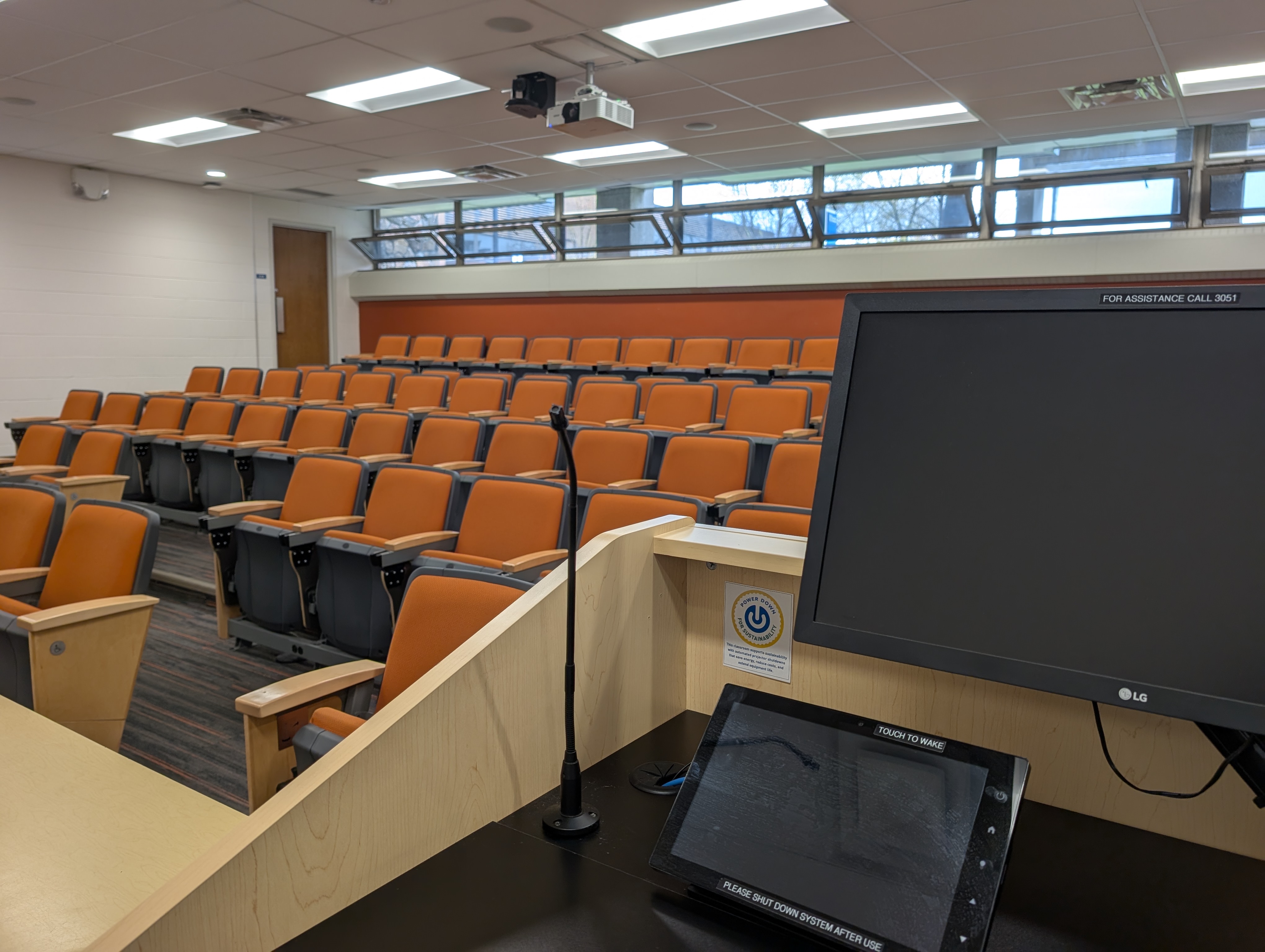
A new programming initiative led by the University of Windsor’s IT Services and Sustainability Office is helping the campus save resources by automating the shutdown of classroom audiovisual (AV) systems.
Designed to automatically power down classroom AV systems after periods of inactivity, the initiative will help the University reduce energy consumption, cut operational costs, extend the life of expensive equipment, and support sustainability goals.
Classroom equipment is sometimes left running between classes, overnight, and on weekends. Estimates suggest that if projectors are routinely left on after evening classes or over weekends, the university could lose hundreds of dollars per week in wasted electricity.
Audiovisual technicians in IT Services have been exploring practical ways to improve efficiency and sustainability and have developed an automated timer system that switches off equipment when it is no longer in use.
To date, seven classrooms have been updated, and the AV team will continue to roll out the initiative across campus, upgrading additional classrooms each semester.
“When projectors are left running overnight or over the weekend, that’s where we see significant waste,” said Asheque Habib, team leader of classroom AV technology.
“Ten extra hours overnight may not seem like much, but across hundreds of classrooms, it adds up quickly.”
Even more significant is the wear and tear on the equipment itself. With projectors ranging in cost from $4,000 to as much as $40,000, reducing unnecessary run time can extend their lifespan and delay costly replacements.
“Initiatives like this demonstrate how small, scalable changes can deliver meaningful energy savings across campus,” said Nadia Harduar, sustainability officer.
“By reducing idle power consumption, AV services are aligning their day-to-day operations with the University's long-term commitment to energy efficiency and responsible resource management.”
The initiative directly addresses Priority 2 “Reducing our Environmental Impact” of the University’s Sustainability Framework (2024-29).
In addition to supporting sustainability and operational efficiency, the initiative will benefit instructors by ensuring each class begins with a fresh system start, reducing disruptions caused by updates and equipment issues.
Classrooms updated through the initiative will be marked with a sustainability badge, making it easy for students, faculty and visitors to recognize spaces that actively support the university’s environmental goals.
With Earth Day on April 22, the initiative is a timely reminder that opportunities to support sustainability – whether in classrooms, offices or at home – help reduce unnecessary energy waste.
To learn more about campus sustainability initiatives or find ways to get involved, visit https://www.uwindsor.ca/sustainability/

 

Hand type on a laptop computer.

The IT Services team invites you to adopt a few Smart Tech Resolutions to keep your devices running smoothly and your digital workspace organized.

Top 5 Smart Tech Resolutions for 2026

  1. Start a Device Maintenance Routine
    Restart your computer weekly to apply updates and clear temporary files. If you have devices that you do not use on a regular basis, power them up and sign in at least once a month to prevent the devices from falling out of compliance or becoming stale.

  2. Declutter Your Digital Space
    With new storage quotas for OneDrive and Outlook, now’s the perfect time to review and remove files you no longer need. Empty your junk folders and recycle bins for a fresh start.

  1. Check File Permissions
    Take a moment to review who has access to your files and folders. Confirm team memberships and adjust permissions as needed to keep your data secure.

  2. Stay Cyber Safe
    Cybersecurity is everyone’s responsibility. Complete your cybersecurity training and attestation to help protect yourself and our campus community from common threats.

  3. Learn Something New
    Set a goal to explore tools like Outlook, SharePoint, OneDrive, and Teams. Explore tutorials provided by Microsoft, check out the UWindsor professional development opportunities, or visit our Knowledge Base for tips and best practices to boost your tech skills.

By adopting these resolutions, you’re helping create a smarter, more secure digital environment.

Laptop computer on a desk

Microsoft will officially end support for the Windows 10 operating system on October 14, 2025. After this date, devices running Windows 10 will no longer receive security updates, non-security updates, or technical support and will not meet the University of Windsor’s requirements for conditional access.

UWindsor is preparing for this transition by identifying all known PC devices running Windows 10. IT Services will be contacting departments to provide a list of known Windows 10 devices in their area as well as options. Emails will also be sent to the primary users of Windows 10 devices when the user is known. 

Important Information:

  • Who is impacted? Anyone who uses a university-owned or research-funded, laptop or desktop computer running Windows 10. In addition, any UWindsor employee who uses a personal device to access University systems for work, courses, or research, such as sessional instructors.
  • What do you need to do? If you are a PC user, you are encouraged to check your device(s) to see which version of Windows it is/they are running. For instructions, please refer to this Microsoft webpage to learn how to find information about your Windows device.
    • If your PC is running Windows 11, no further action is required.
    • If you have a known university-owned or research-funded device running Windows 10, you should receive an email from IT Services by mid-August with further guidance. If, however, you have a Windows 10 device and do not receive an email, please submit a Hardware Support ticket to flag the device for IT Services.
    • If your personal PC is running Windows 10 and you use it to access University systems, it will need to be updated to Windows 11 or replaced to continue to meet UWindsor’s conditional access requirements. 
Digital Spring Cleaning Challenge

Spring has finally sprung, and Information Technology Services would like to thank the campus community for participating in the Digital Spring-Cleaning Challenge. Over the course of one month, UWindsor was able to reduce its excess storage by 201 TB.

While progress has been made, there is still time to clean your files and commit to the Digital Spring-Cleaning Challenge for a chance to win a $50 UWinCash gift card.

“Every little bit helps,” says Ericka Greenham, director of client services in IT Services. “To date, our collective efforts to remove and delete files and emails we no longer need have added up to more than $100,000 in annual storage savings.”

IT Services encourages the campus to continue their digital decluttering efforts and suggests incorporating good file management habits into their daily work routines.

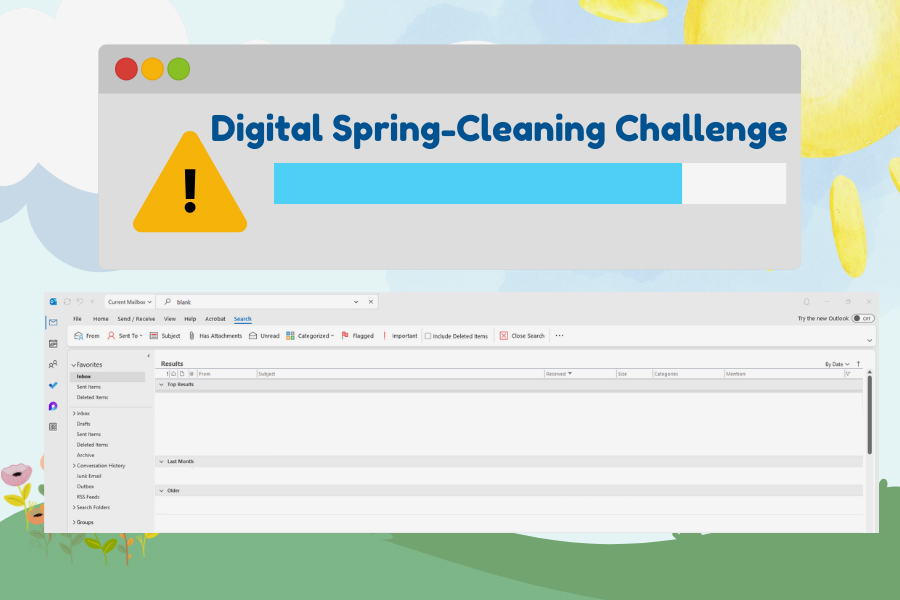
Habits you can incorporate for your Outlook mailbox include creating and using folders to organize important emails, setting reminders to review your inbox regularly, and deleting unnecessary emails after reading them. Be sure to empty the “Deleted” and “Junk” folders, as these emails still count against your storage. This will help you keep your mailbox within storage limits and prevent it from becoming overloaded.

You can also use Outlook’s sorting tools to find and delete old emails by date or locate emails with large attachments. Consider deleting full email conversations or using the “Archive” feature for important but infrequently needed emails.

By taking some time now to clean up both OneDrive and Outlook, you’ll ensure your storage stays manageable and avoid hitting storage limits.

Refer to the Microsoft Storage Knowledge-Base articles to learn more about how to clean up your digital storage.

As a reminder, the following storage limits will be implemented:

Microsoft App

Employee
(Faculty/Staff/Sessional)

Student

Retiree

Alumni

OneDrive

20 GB

5 GB

1 GB

N/A

Outlook Mailbox

10 GB

5 GB

10 GB

5 GB

In addition, Teams and SharePoint sites will be limited to 25 GB of storage, and shared mailboxes will be limited to 20 GB.

If you are currently using more than the allotted storage amounts for your account type listed above, you will need to reduce duplicate and redundant data in your UWindsor Outlook email account and OneDrive to stay below the threshold. Users who may require more than the allotted quota for work, academic, or research purposes can submit a request to IT Services for review.

Spring Cleaning Challenge

Information Technology Services reminds campus users of the Digital Spring-Cleaning Challenge to clear up UWindsor OneDrive and Outlook accounts in advance of the upcoming Microsoft storage changes.

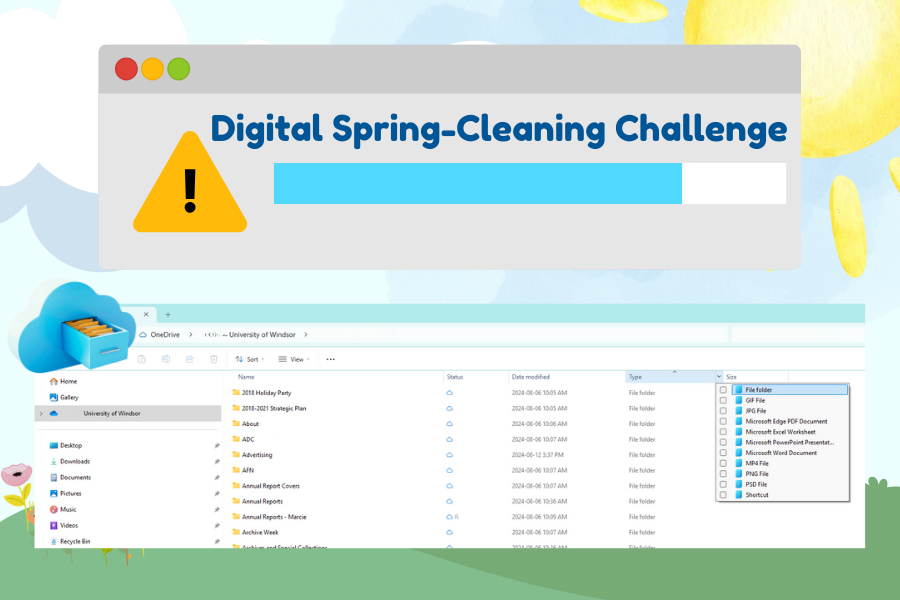
Looking to make a dent in your digital files? To reduce large files in your OneDrive, try using the sort by size filter.

You can sort your OneDrive folders and files by size to identify large files such as old class or lecture recordings, photos, videos, or ZIP files that you no longer need. If any large files are duplicated or no longer necessary, delete them. Be sure to also clear out your Downloads folder if it’s stored on OneDrive.

Refer to the Microsoft Storage Knowledge-Base articles for more information on how to clean up your digital storage.

Don’t forget to sign up for the Digital Spring-Cleaning Challenge for a chance to win a $50 UWinCash gift card.

As a reminder, beginning April 7, the following storage limits will be implemented:

Microsoft App

Employee
(Faculty/Staff/Sessional)

Student

Retiree

Alumni

OneDrive

20 GB

5 GB

10 GB

N/A

Outlook Mailbox

10 GB

5 GB

1 GB

5 GB

In addition, Teams and SharePoint sites will also be limited to 25 GB of storage and shared mailboxes will be limited to 20GB.

If you are currently using more than the allotted storage amounts for your account type listed above, you will need to start reducing duplicate and redundant data in your UWindsor Outlook email account and OneDrive to get below the threshold. Users who may require more than the allotted quota for work, academic, or research purposes can submit a request to IT Services for review.